4 Android Auto settings I always turn on for a safer ride
Android Auto offers several built-in safety features to minimize distractions while driving, and here are four settings that can make a big difference.
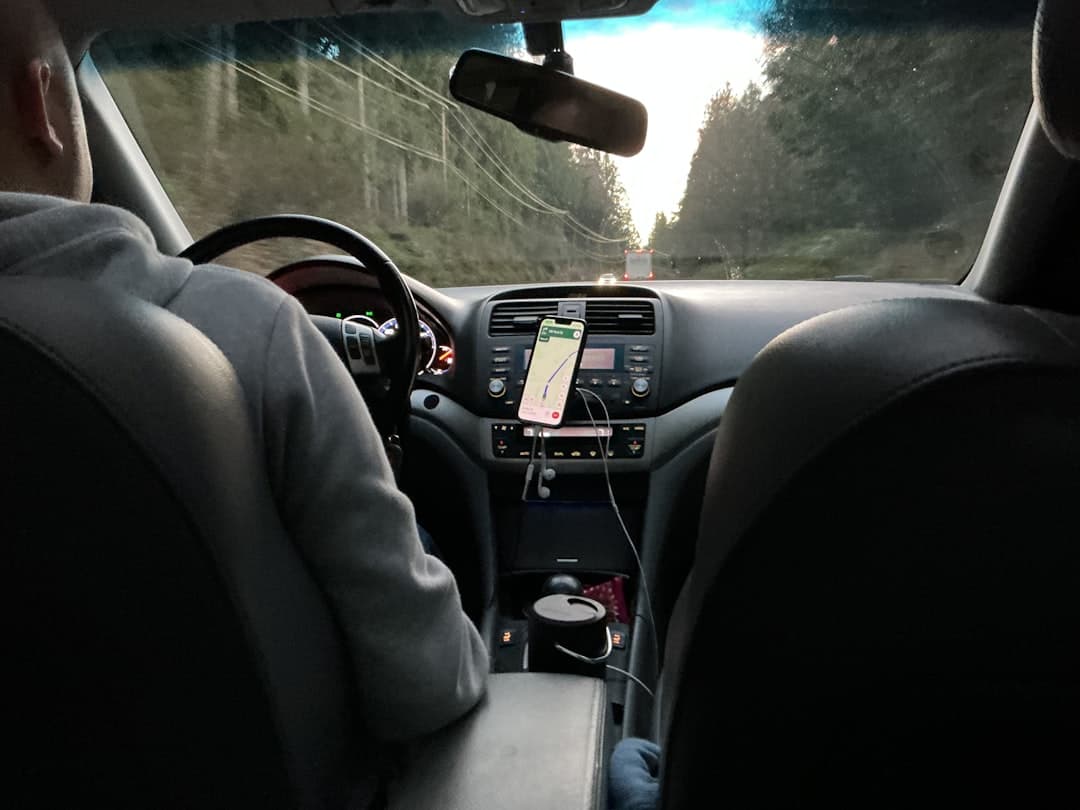
Android Auto is designed to keep your hands off your phone and your eyes on the road, but it's not a foolproof system. Getting preoccupied with your car's screen can be just as hazardous as glancing at your phone. Fortunately, Android Auto has several built-in safety features that can make your daily drive safer while still allowing you to control your navigation, music, and more.
I've used these options myself, and while I don't necessarily enjoy them all, they have helped me stay more focused on my drive. Here are four safety features you should consider using. Automatically connecting and launching Android Auto is both a convenience and a safety setting.
If you're not set up to auto-launch, you're likely using your phone to fire up Android Auto while driving, which means your eyes aren't on the road. With auto-launch, your maps and music are ready immediately. Another useful feature is split-screen mode, which allows you to see all your important information at once.
If you're using navigation and playing music or a podcast, split-screen mode lets you view both apps simultaneously. To enable this feature, simply tap the multi-window icon in the bottom left. By default, navigation will be closer to the driver, and media will be on the opposite side, but you can change this in settings to have media closer to you.
This is particularly useful in cars with wide landscape displays. I've also come to appreciate the value of voice controls in my car, especially with Gemini. Using voice commands helps me avoid reaching for the display and getting distracted.
The most impactful setting for reducing distractions, however, is Do Not Disturb mode. This mode silences notifications from social media, text messages, and more, allowing me to focus on the road. I still receive calls from preset contacts, but 95% of digital noise is eliminated.
To set this up, go to your phone's settings and search for "Driving." You can configure this mode to engage only when connected to your vehicle's Bluetooth, so it doesn't kick in when you're riding in another car.
Source: ZDNet